
NOTE: This is available for US clinics only.
Video Guide: Changing Invoice Summary to Superbill Summary
If you’d like your paid invoice summaries to display as Superbill summary instead of the default label, you can easily update this in your Billing settings. Follow the step-by-step guide below.
Step 1: Go to Billing Settings
Click on Settings.
Navigate to the Billing tab.

Step 2: Enable the Superbill Summary Label
Scroll down until you find the Superbill section.
(There are several settings in this area, so be sure to locate the correct section.)Look for the option labeled:
Relabel the paid invoice summary as Superbill Summary.Toggle this setting ON.
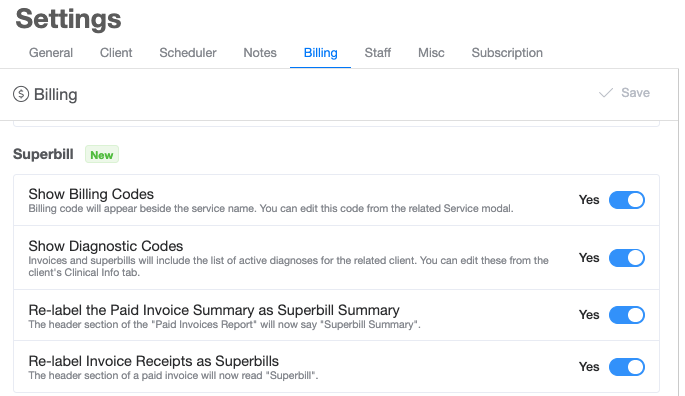
Once enabled, your invoice summary label will automatically update.
Step 3: View the Updated Label
To see the change in action:
Go to the Clients tab.
Select a client.
Navigate to the Invoice History section.
Click the Invoice Summary button.
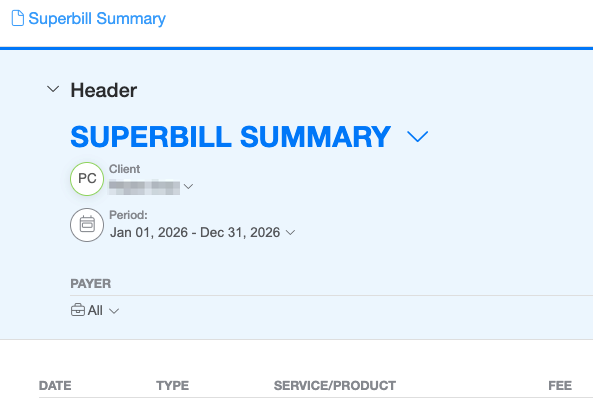
You’ll now see that the header has been updated to Superbill Summary.
Step 4: Export the PDF
If you export the invoice summary as a PDF:
The PDF header will also display Superbill Summary.
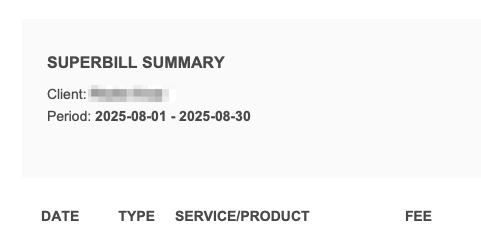
That’s it!
Your paid invoice summaries will now reflect the updated label both within the platform and on exported PDFs.