
*The billing code will only appear on the PDF version of the invoice and is not visible within the invoice editor view.
Video Guide: Billing Code
Adding a billing code to a service ensures that the correct code is automatically reflected on your client invoices.
Follow the steps below to set this up and confirm it appears properly.
Step 1: Go to Services Under Clinic Setup
Navigate to Clinic Setup.
Click on Services.
Select the service you would like to update (or create a new one if needed).
Step 2: Add the Billing Code
Inside the service settings, locate the Billing Code field.
Enter the billing code you want associated with this service.
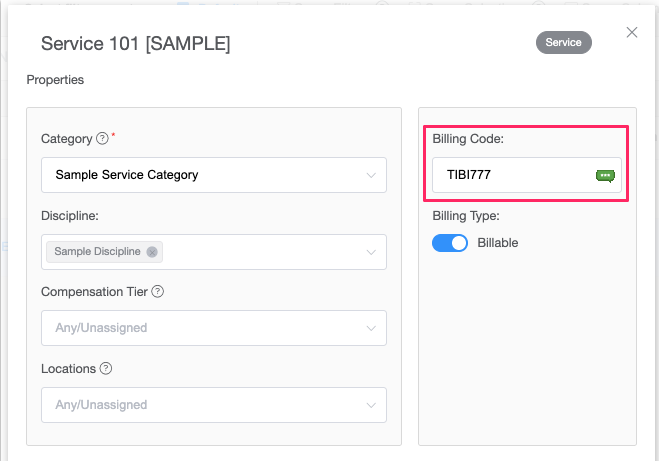
Review the Billing Type option:
Billable – The service will appear on invoices.
Non-billable – The service will not generate invoice charges.
For this example, keep the billing type set to Billable.
Click Save once you’ve entered the billing code and confirmed the billing type.
Step 3: Create an Invoice Using the Updated Service
Now that the billing code is attached to the service, let’s confirm it appears on an invoice.
Go to the Clients tab.
Select a client.
Add or create a session using the service you just updated.
Generate the invoice for that session.
Step 4: Download and Confirm
Download the invoice as a PDF.
Open the PDF file.
Confirm that the billing code appears next to the corresponding service on the invoice.
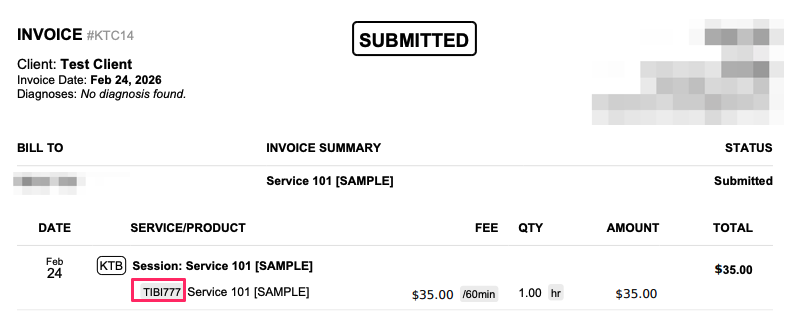
Once the billing code is saved within the service settings and the service is marked as billable, it will automatically populate on invoices whenever that service is used.
If the billing code does not appear, double-check:
The service is marked as Billable
The correct service was selected for the session
The invoice was generated after saving the changes