
Video Guide: Invoice Header Address
The Invoice Header Address feature allows you to display your clinic’s selected address at the top of your invoices. This ensures your billing documents include the correct business information both in the invoice editor and on the final PDF.
Follow the steps below to set it up.
Step 1: Add Your Clinic Address
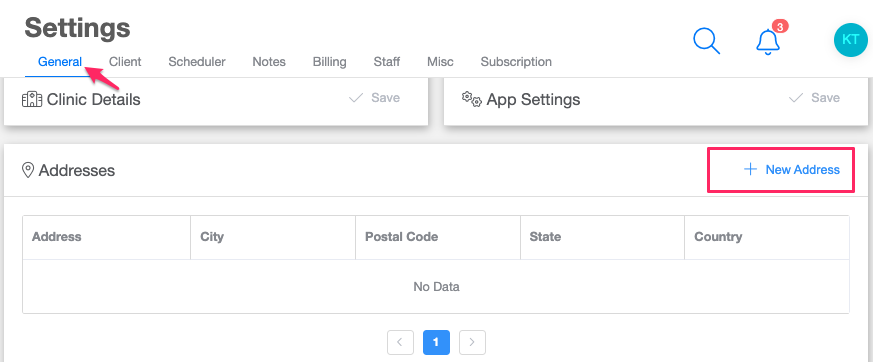
- Go to Settings.
- Stay in the General tab.
- Scroll down to the Addresses section.
- If you don’t have an address saved yet, click New Address.
- Fill in the required details.
- Click Save.
Your address is now stored and ready to be used on invoices.
Step 2: Enable the Invoice Header Address
- Navigate to the Billing tab in Settings.
- Scroll down until you find the Invoice Header section.
- Toggle Invoice Header Address to On.
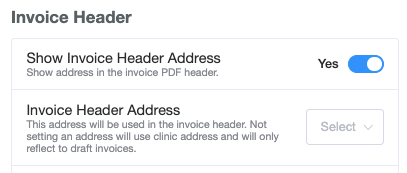
- From the dropdown menu, select the address you want displayed. If you have multiple saved addresses, they will all appear in the dropdown list.
- Click Save.
Step 3: Preview the Address on an Invoice
- Go to the Client tab.
- Select a client.
- Open the Finance tab.
- Add a session to create an invoice.
You will now see your selected address displayed in the invoice header within the invoice editor.
Step 4: Download the Invoice PDF
Download the invoice to confirm that:
- The selected address appears in the invoice header.
- The address is also visible on the final PDF version.
Once enabled, the Invoice Header Address will automatically display on all invoices using the selected address, helping ensure accurate and professional billing documentation.