
This guide will walk you through setting up Google Tag Manager (GTM) and Google Analytics 4 (GA4) to track activity in Therabyte.
Once set up, you can track:
- Page views – when users visit or navigate between pages
- Form submissions – when a form is successfully submitted
Before you begin: This setup requires access to both Google Analytics and Google Tag Manager.
Part 1 — Create a Google Analytics (GA4) Account
Step 1: Sign in to Google Analytics
- Go to: Google Analytics
- Sign in using your Google account
- If you don’t have one, create a Google account first
Step 2: Create an Analytics Account
- Click Start Measuring

- Under Account Details, enter your Account Name (e.g., Your Business Name)
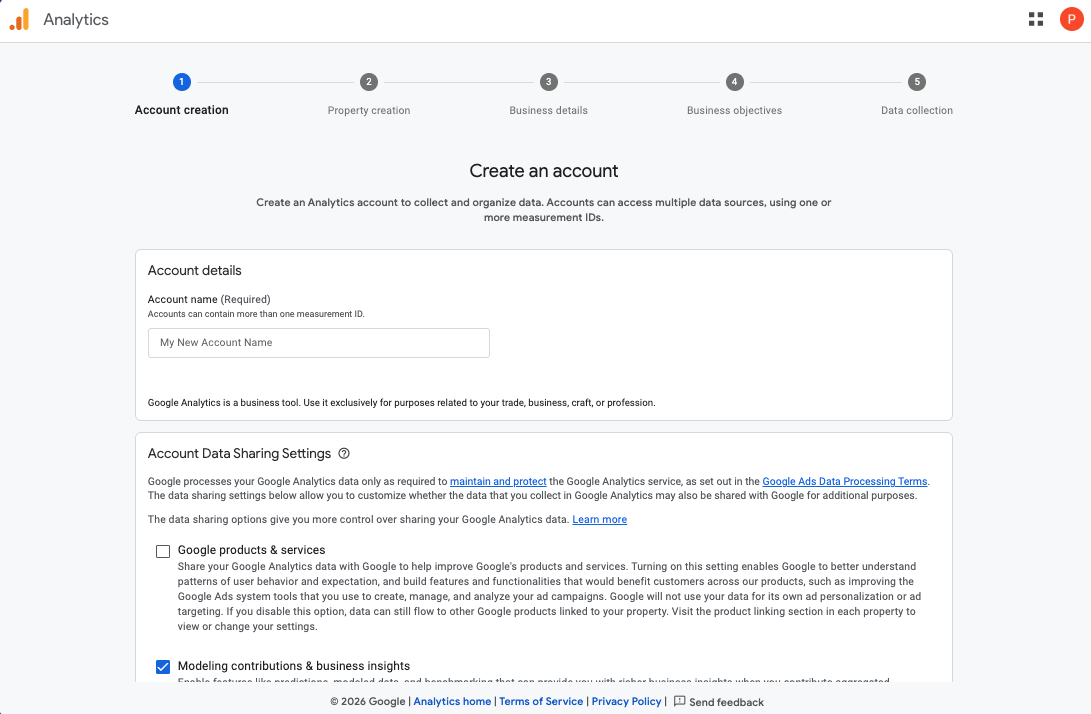
- Click Next
Step 3: Create a Property (GA4)
- Enter a Property Name (e.g., Website Name - GA4)
- Select your reporting time zone and currency
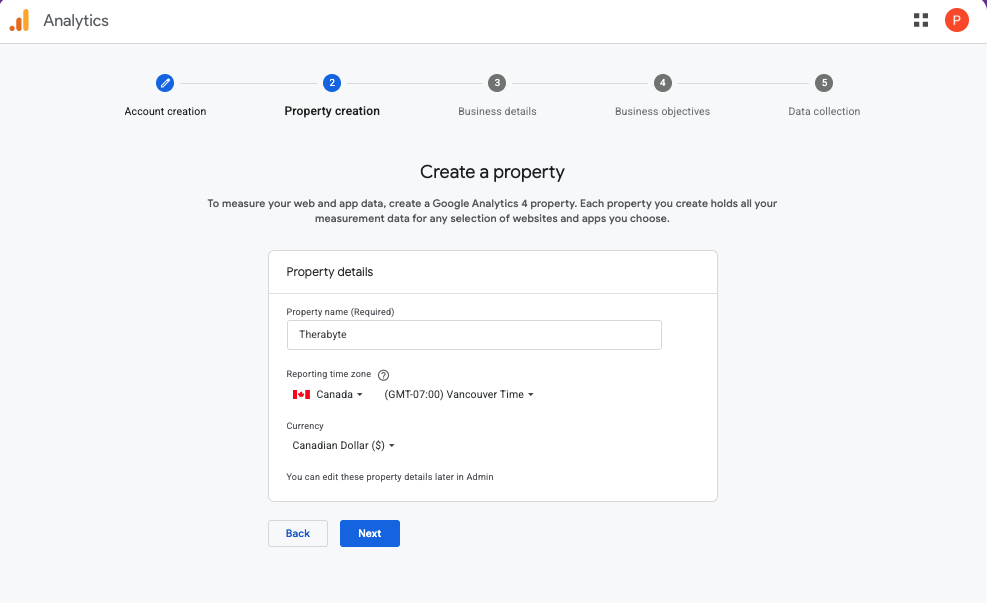
- Click Next
Step 4: Business Details
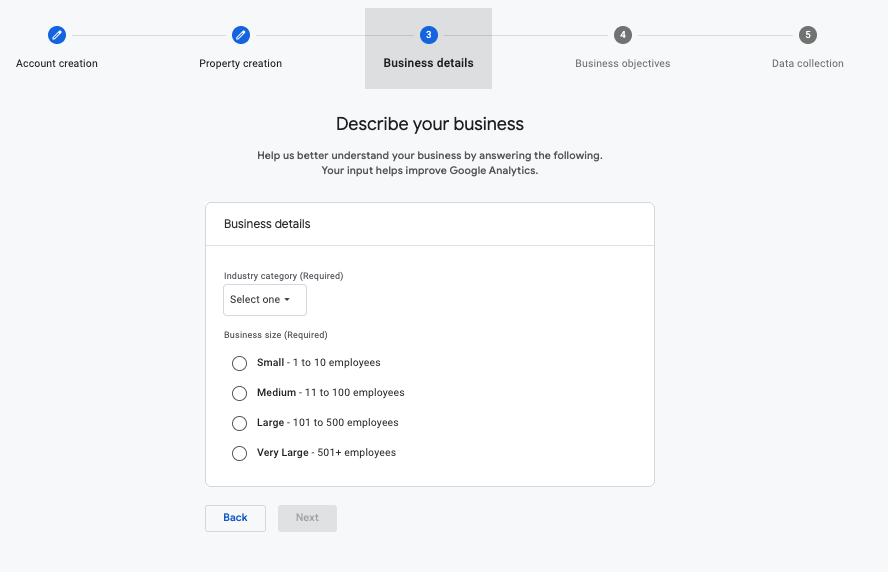
- Choose your industry category
- Select business size
- Click Next
Step 5: Choose your business objectives
- Select one or more business objectives.
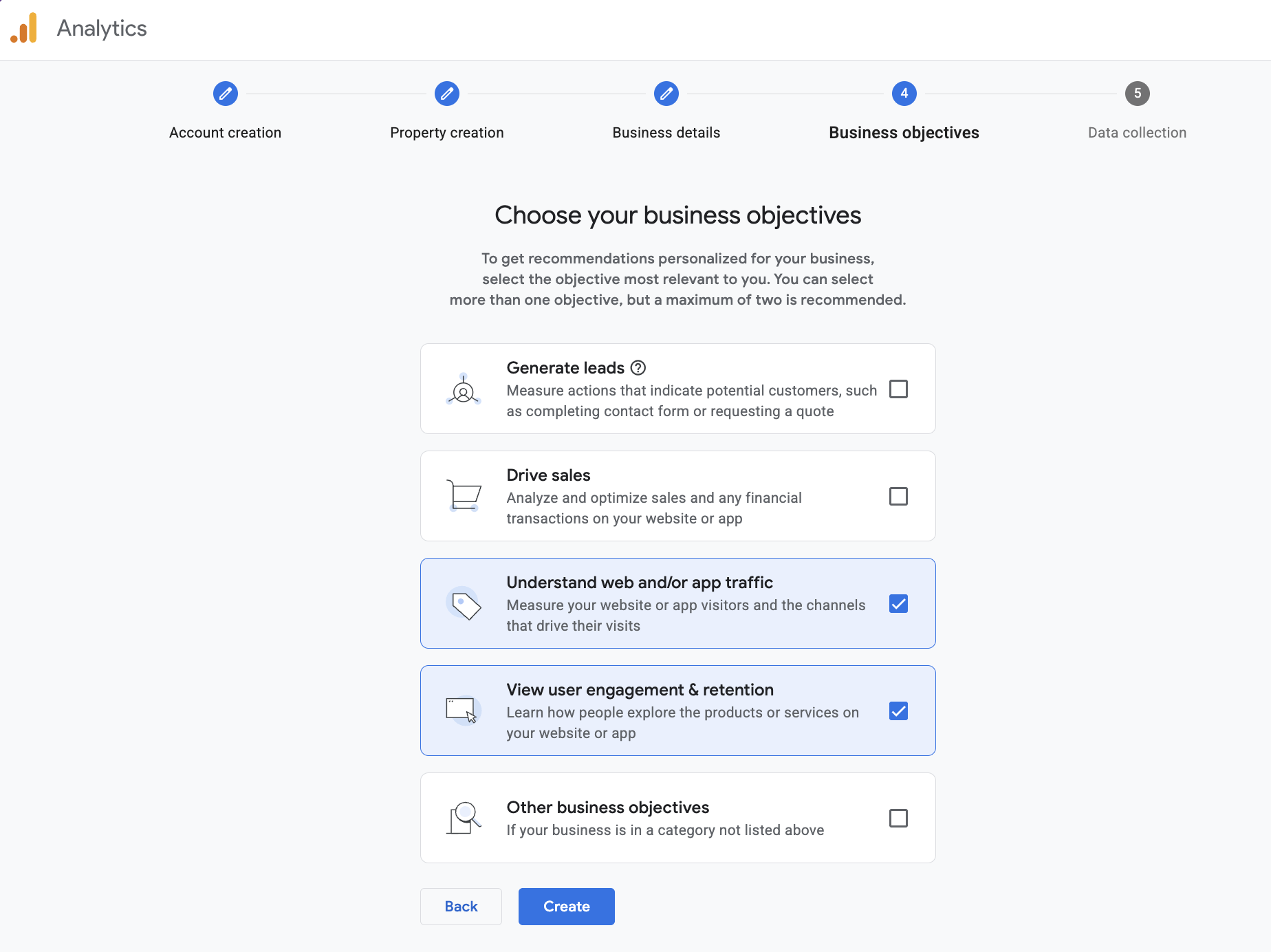
- Click Create
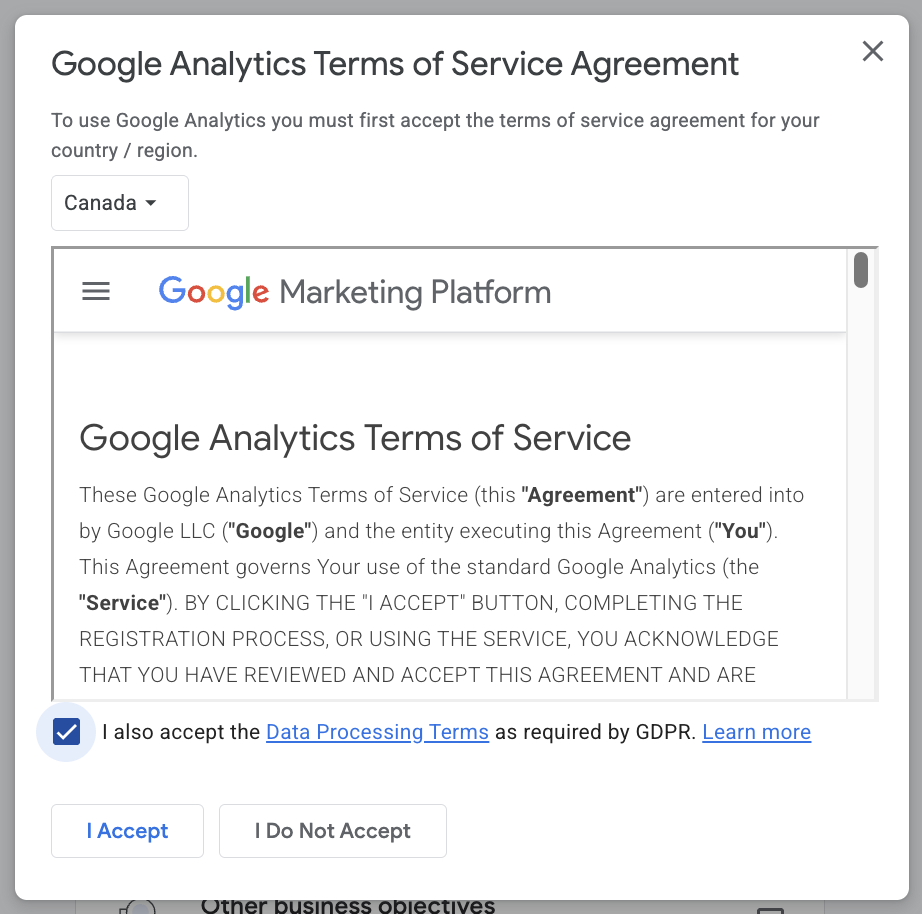
- Review the Terms of Service and click Accept to continue.
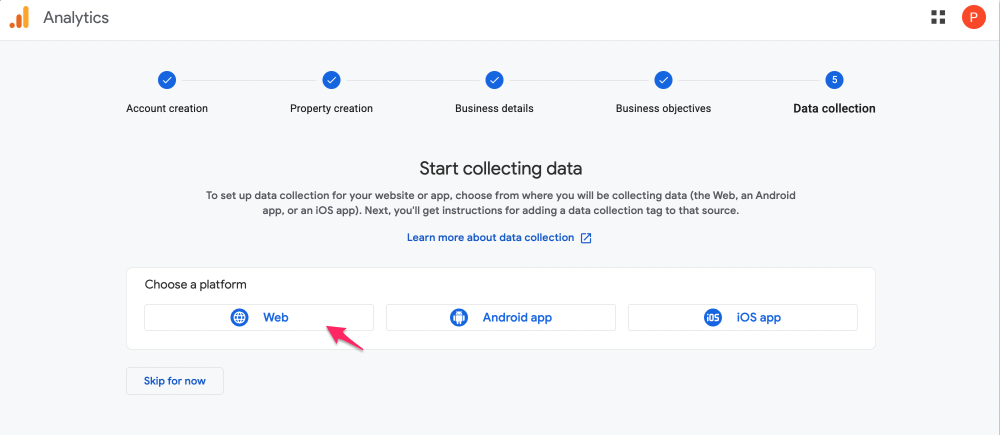
Step 6: Create Data Stream
- Choose Web
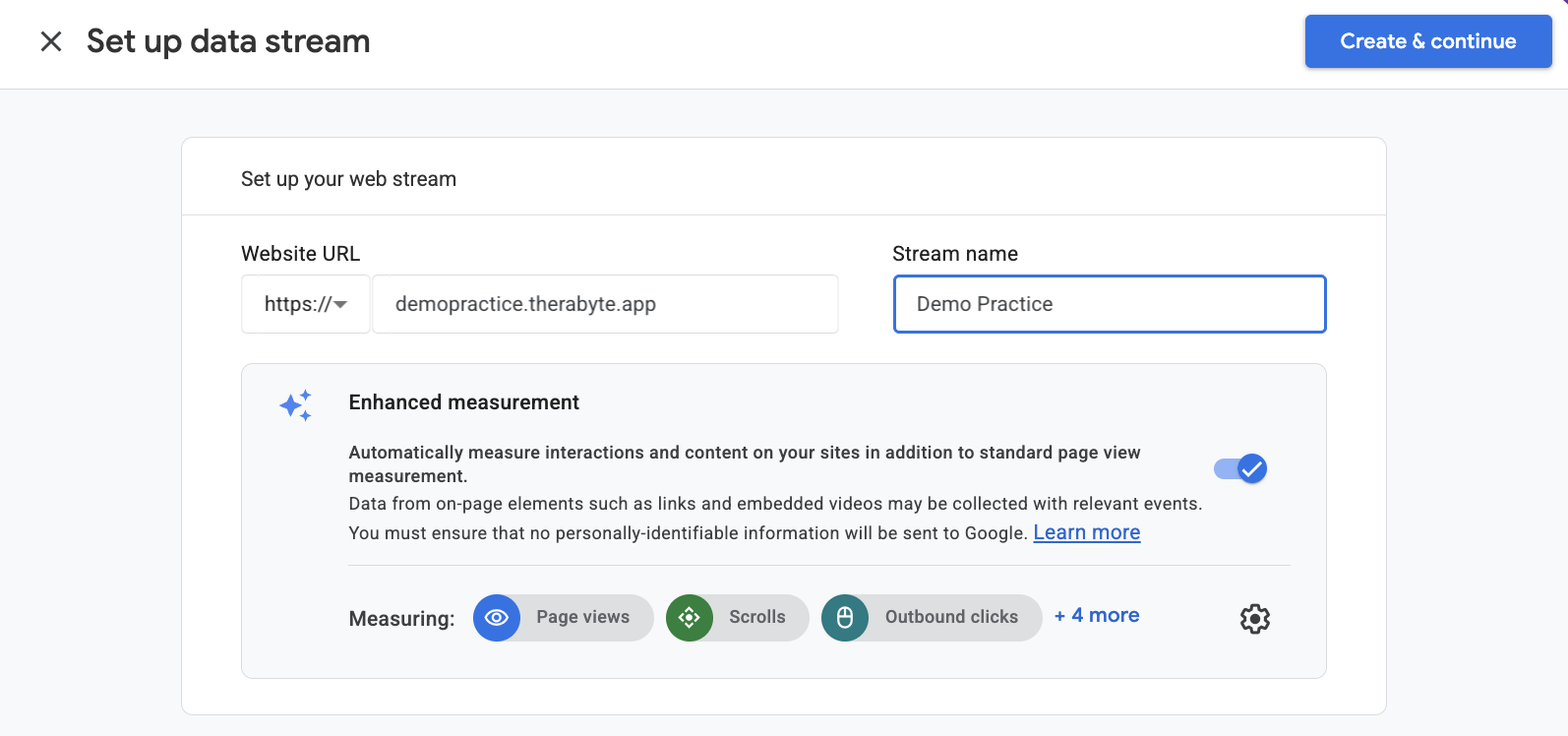
- Enter your website URL (e.g., https://yourclinicdomain.therabyte.app)
- Enter a Stream Name (e.g., Main Website)
- Click Create & continue
Step 7: Copy Your Measurement ID
- After creating the stream, you will see a Measurement ID (format: G-XXXXXXXXXX)
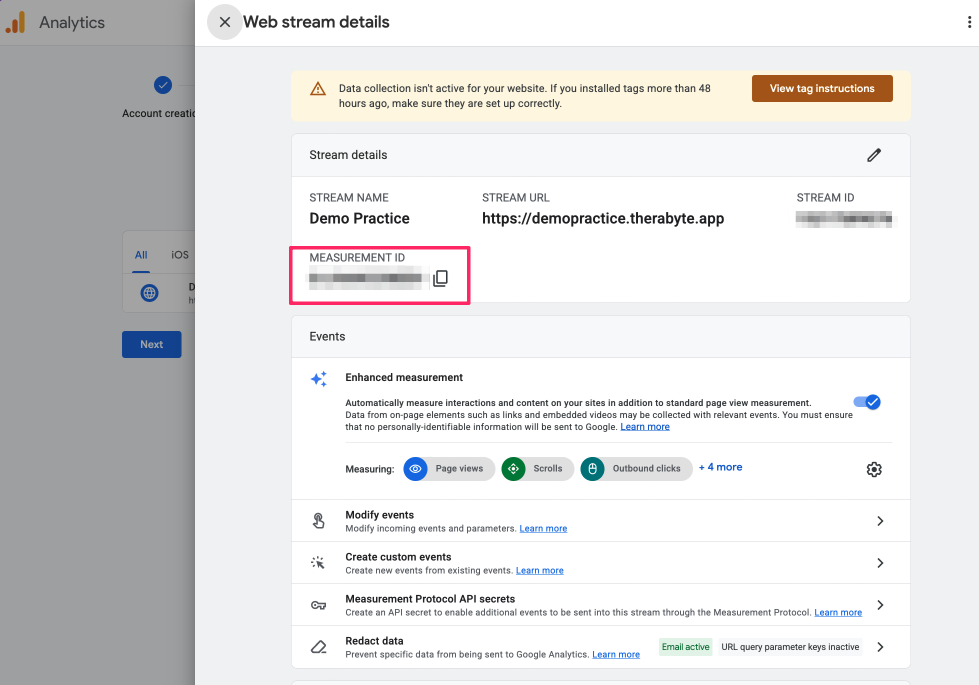
- Save this—you will use it in Google Tag Manager later.
Part 2 — Create a Google Tag Manager Account
Step 1: Go to Google Tag Manager
- Visit: Google Tag Manager
- Sign in with the same Google account
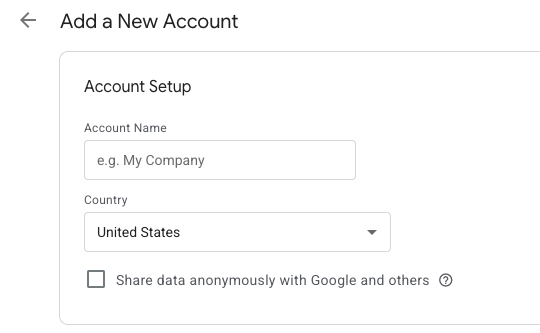
Step 2: Create an Account
- Create an account
Step 3: Create a Container
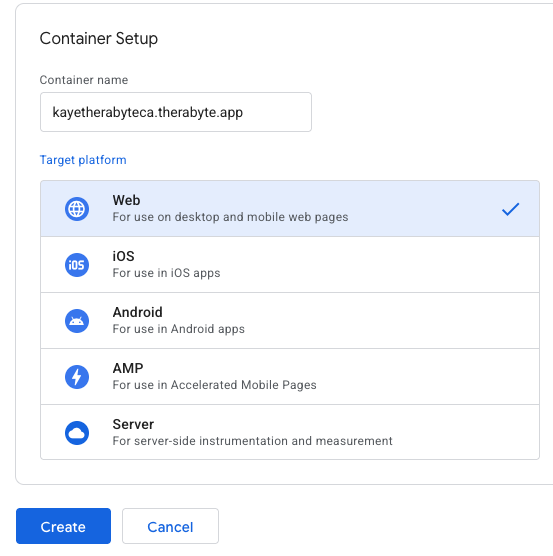
- Enter a Container Name (your website domain is recommended)
- Choose platform:
- Select Web
- Click Create
Step 4: Accept Terms
- Review and accept the Google Tag Manager Terms of Service
PART 3 — Set Up Page View Tracking
Page view tracking allows Google Analytics to record when users navigate between pages.
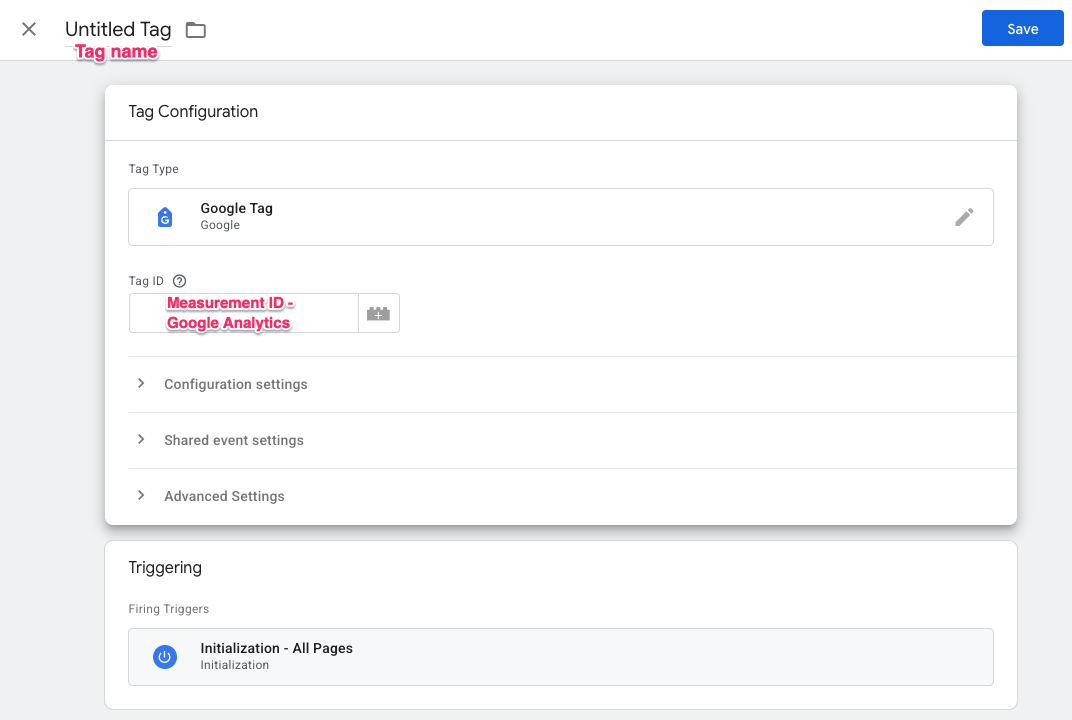
Step 1: Create the Google Tag
Video Guide: Create the GA4 Configuration Tag
In Google Tag Manager:
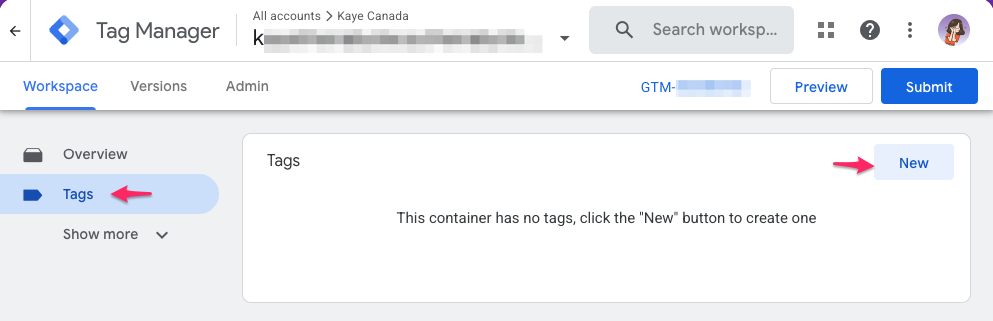
- Go to Tags and click New.
- Enter the following:
Field Value Tag name GA4 - Configuration Tag type Google Tag Tag ID G-XXXXXXXXXX Trigger All Pages
Step 2: Create the Page View Variables
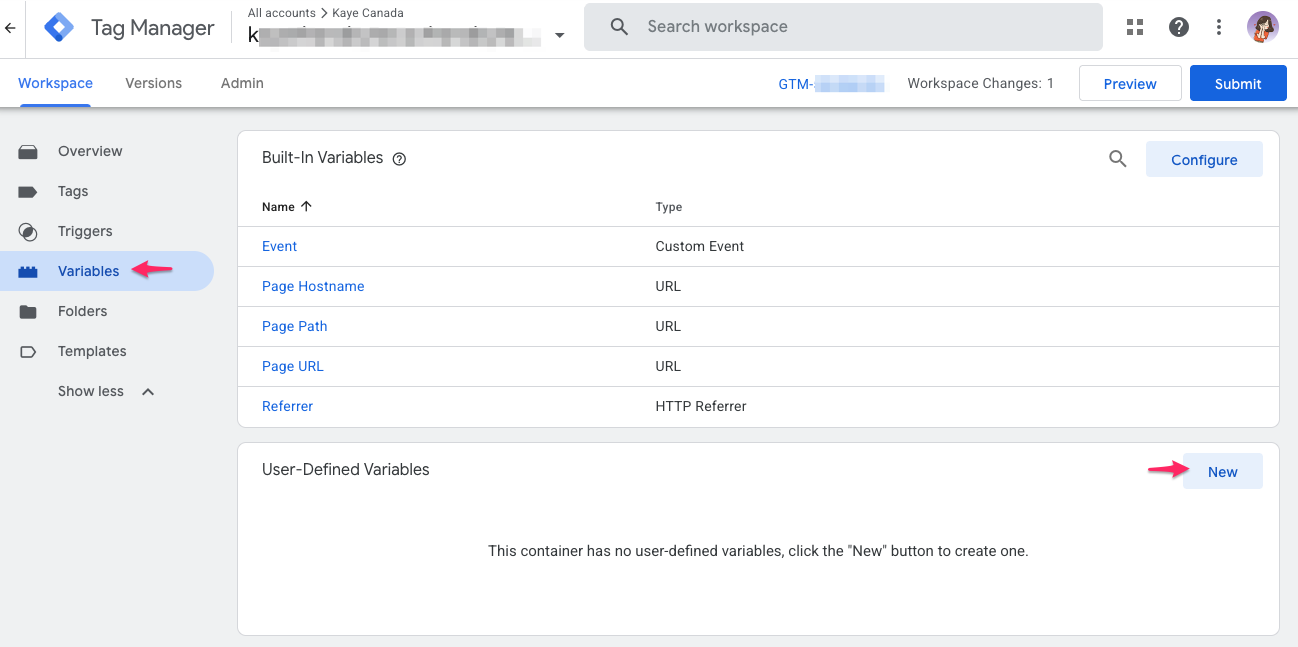
Next, you'll create variables that allow Therabyte to send page information to Google Analytics.
- In Google Tag Manager, go to:
- Variables → User-Defined Variables → New
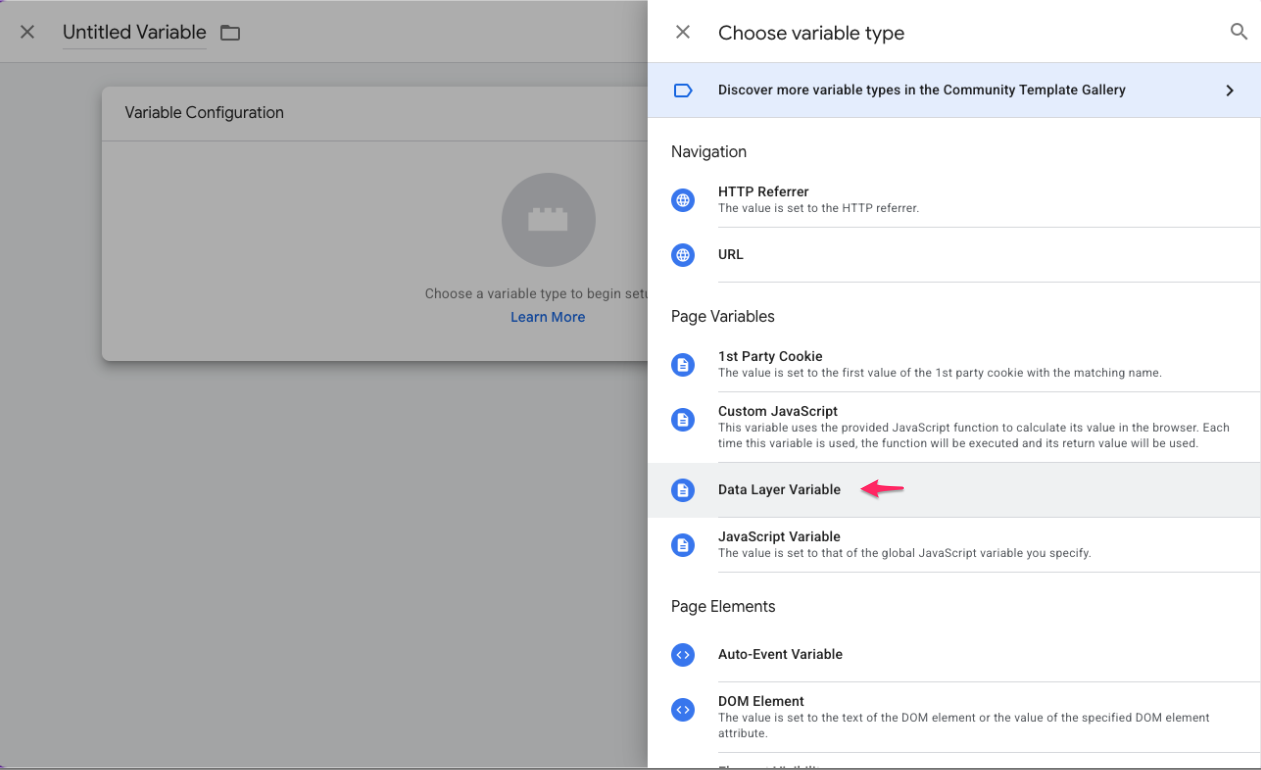
- Choose Data Layer Variable as the variable type.
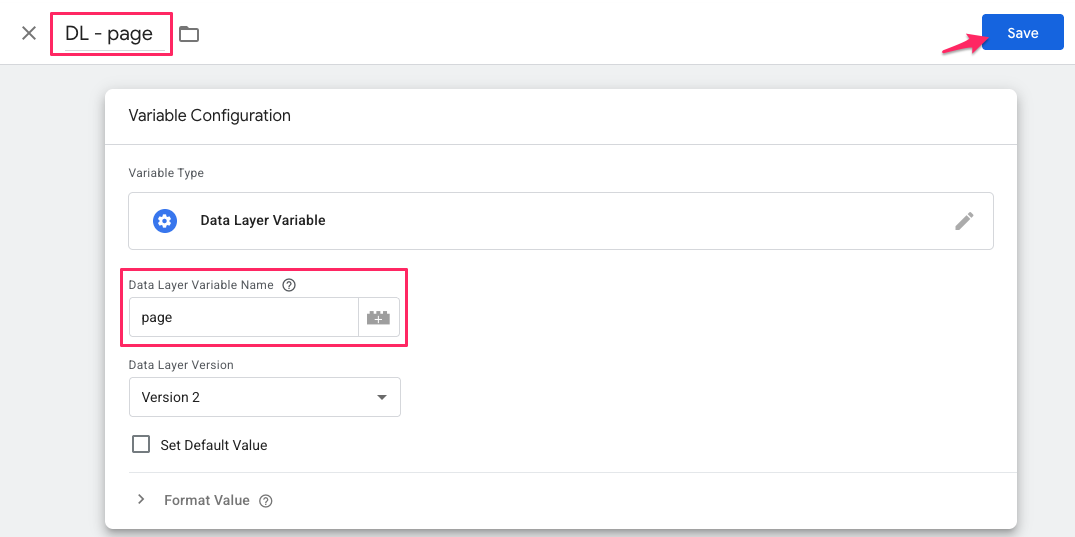
- Video Guide: Create Data Layer Variables
Create each of the following variables:Variable Name Data Layer Variable Name DL - page page DL - page_name page_name DL - page_title page_title DL - clinic_id clinic_id DL - clinic_name clinic_name
Step 3: Create the Page View Trigger
Now you'll create a trigger that tells GTM when a page view occurs.
- Go to: Triggers → New
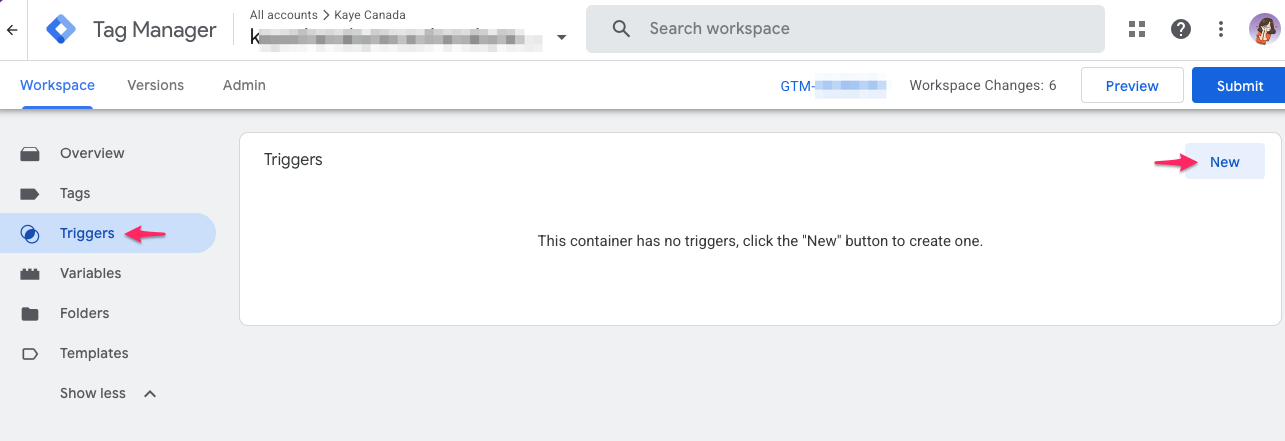
- Video Guide: Create the Pageview Trigger
Enter the following:Field Value Trigger name Custom Event - Pageview Trigger type Custom Event Event name pageview This trigger fires on All Custom Events
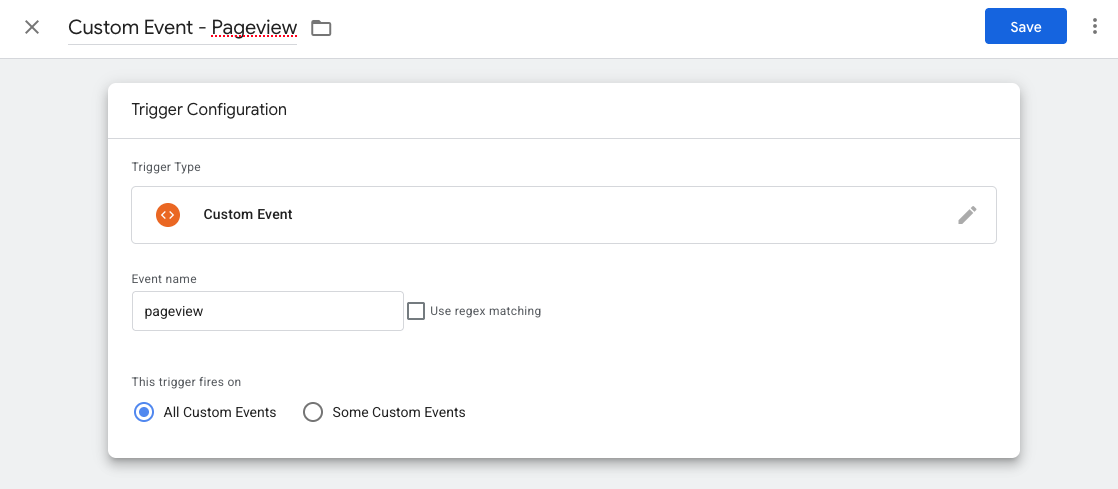
Step 4: Create the GA4 Pageview Tag
- Go to: Tags → New
- Video Guide: Create the GA4 Pageview Tag
Enter the following:Field Value Tag name GA4 - Pageview Tag type Google Analytics: GA4 Event Measurement ID G-XXXXXXXXXX Event name page_view Trigger Custom Event - Pageview
Step 5: Add Event Parameters
- Go to: Tags → GA4 Pageview
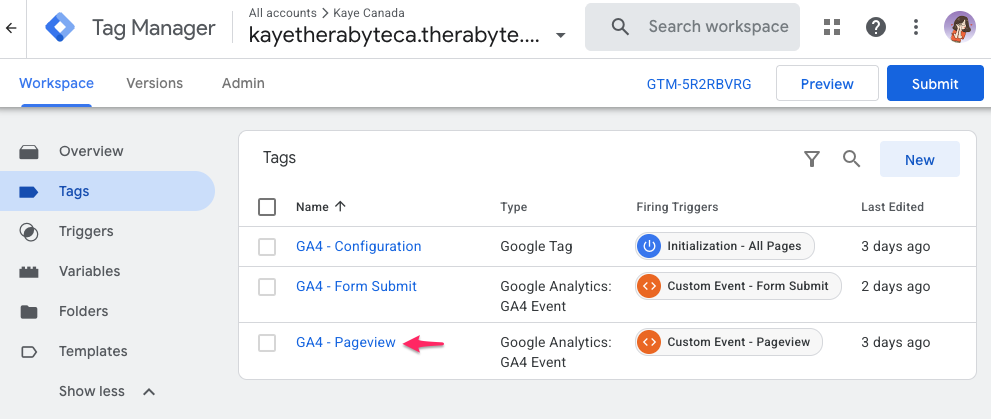
- Click the Pencil Icon in the Tag Configuration
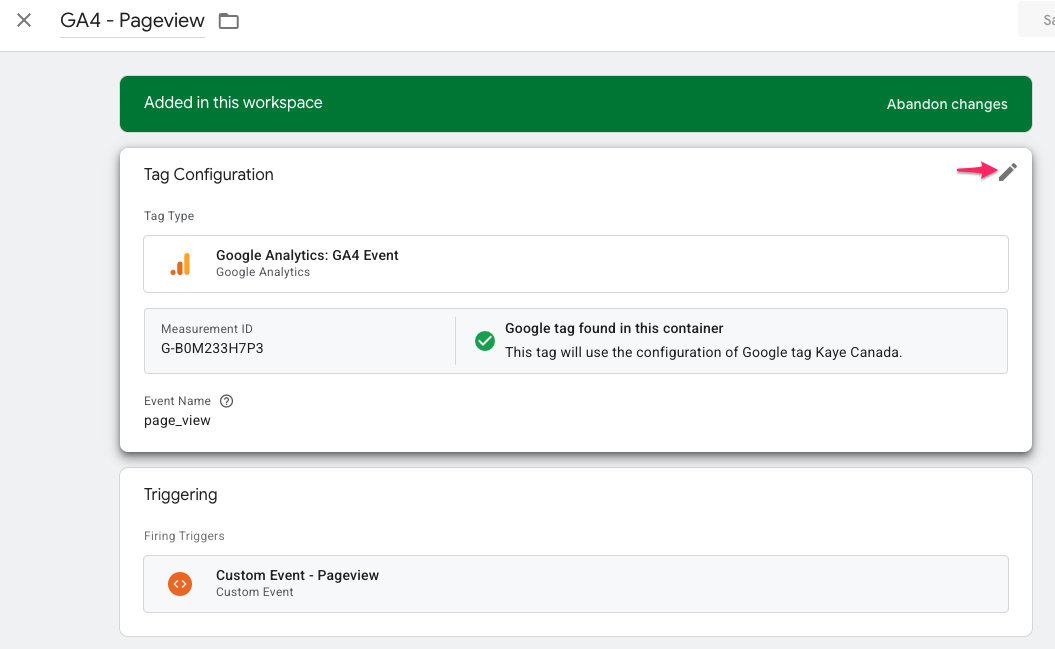
- In the Event Parameters add the following:
Video Guide: Event Parameters - Pageview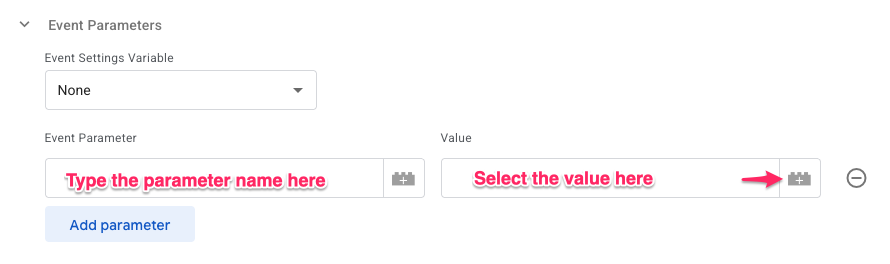
Parameter Name Value page {{DL - page}} page_name {{DL - page_name}} page_title {{DL - page_title}} clinic_id {{DL - clinic_id}} clinic_name {{DL - clinic_name}}
PART 4 — Set Up Form Submission Tracking
Next, you'll configure GTM to send an event to Google Analytics whenever a form is submitted.
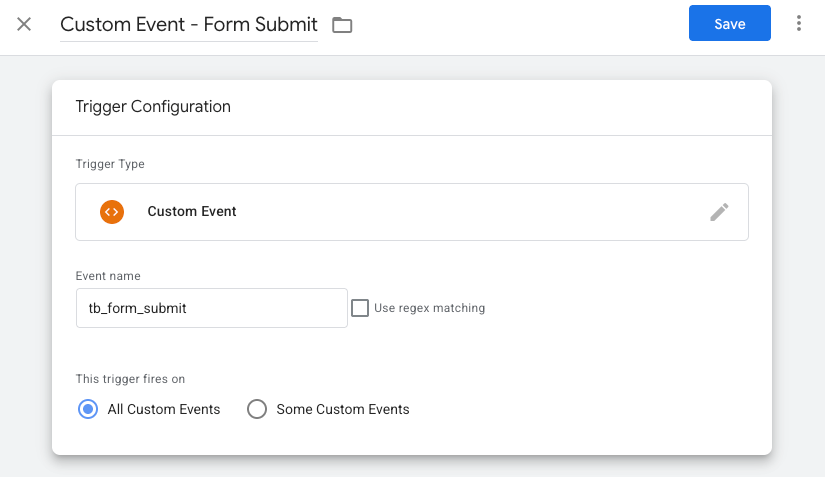
Step 1: Create the Form Submission Trigger
- Go to: Triggers → New
Enter the following:
Field Value Trigger name Custom Event - Form Submit Trigger type Custom Event Event name tb_form_submit This trigger fires on All Custom Events
Step 2: Create Additional Data Layer Variables
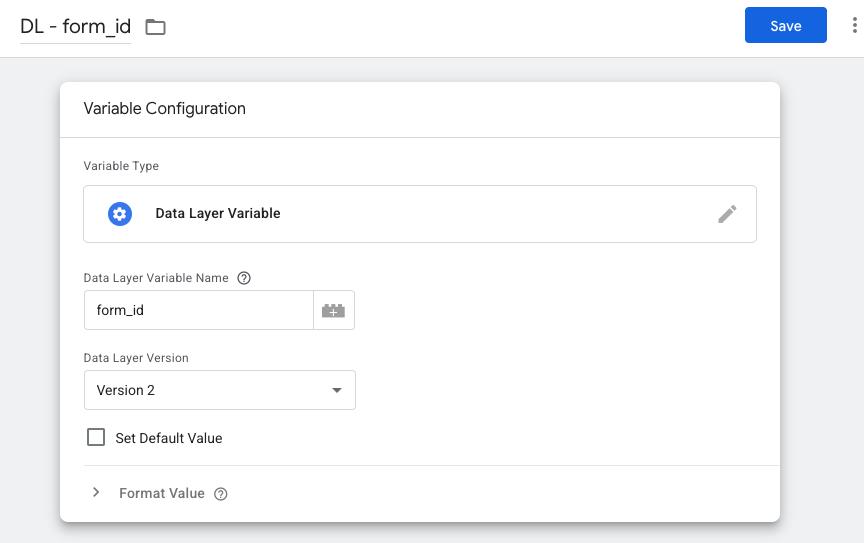
- Go to: Variables → User-Defined Variables → New
- Choose Data Layer Variable.
- Create the following variables:
Variable name Data Layer Variable Name DL - form_id form_id DL - form_name form_name DL - form_type form_type DL - form_type_id form_type_id
Step 3: Create the GA4 Form Submission Tag
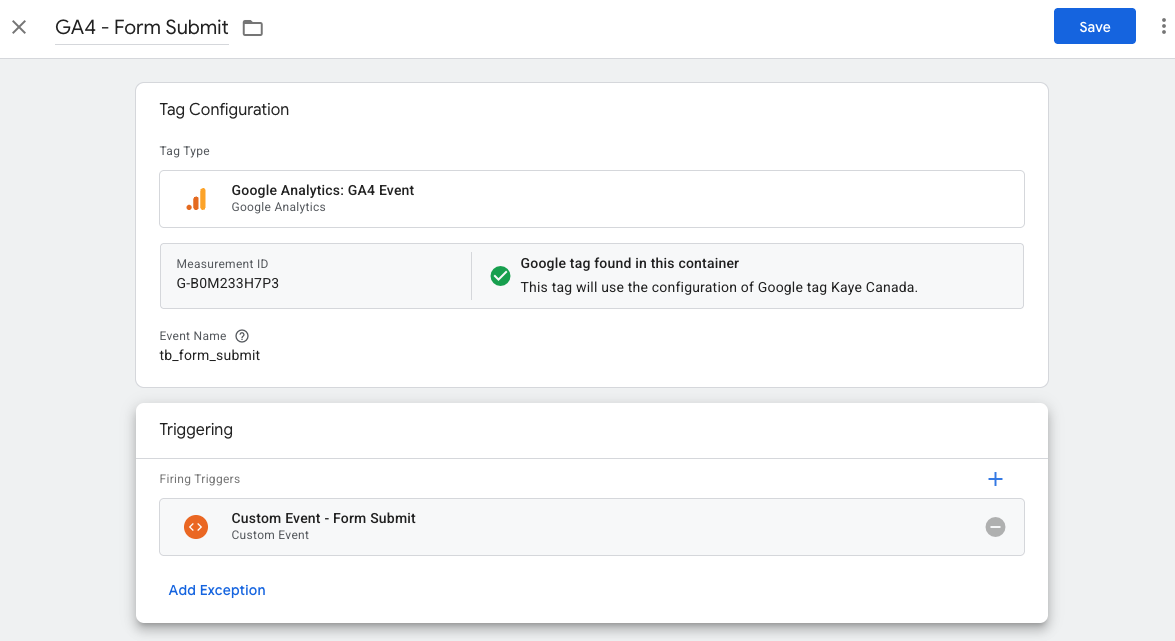
- Go to: Tags → New
- Enter the following:
Field Value Tag name GA4 - Form Submit Tag type Google Analytics: GA4 Event Measurement ID G-XXXXXXXXXX Event name tb_form_submit Trigger Custom Event - Form Submit
Step 5: Add Event Parameters
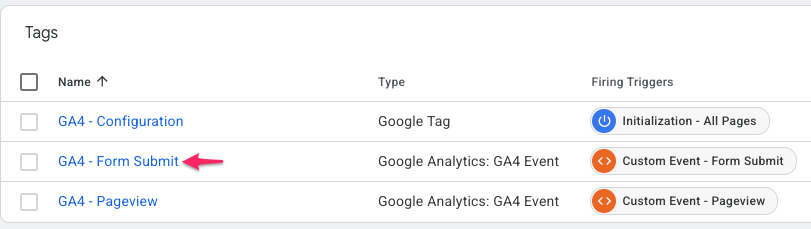
- Go to: Tags → GA4 Form Submit
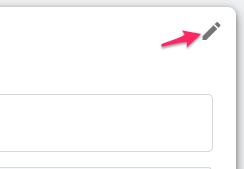
- Click the Pencil Icon in the Tag Configuration
- In the Event Parameters add the following:
Parameter Name Value form_id {{DL - form_id}} form_name {{DL - form_name}} form_type {{DL - form_type}} form_type_id {{DL - form_type_id}} clinic_id {{DL - clinic_id}} clinic_name {{DL - clinic_name}}
PART 5 — Connect Google Tag Manager to Your Therabyte Clinic
Before testing your setup, you need to connect your Google Tag Manager container to your Therabyte clinic.
Step 1: Copy Your GTM Container ID
In Google Tag Manager:
- Open the GTM container you created for your clinic.
- Find your Container ID at the top of the page.
- Copy the Container ID.
It will look similar to:GTM-XXXXXXX
Important: Your GTM Container ID starts withGTM-. This is different from your GA4 Measurement ID, which starts withG-.
Step 2: Add the GTM Container ID to Therabyte
In your Therabyte clinic:
- Go to Landing Page.
- Select the Integrations tab.
- Find the Google Tag Manager section.
- Paste your GTM Container ID (
GTM-XXXXXXX) into the provided field. - Click Save.
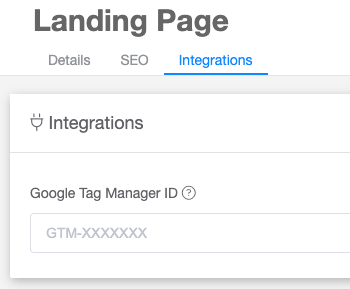
Your Therabyte clinic is now connected to your Google Tag Manager container.
PART 6 — Publish Your GTM Changes
Before publishing your changes, test everything to make sure your events are being detected correctly.
In Google Tag Manager:
- Click Submit.
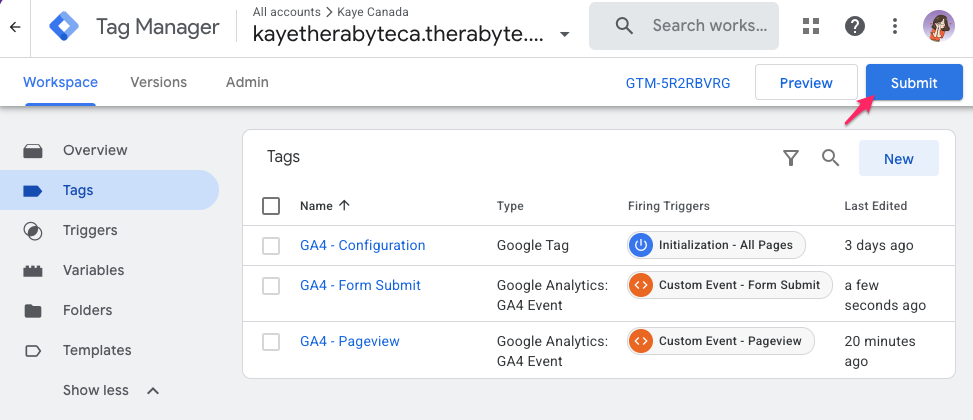
- Review your changes.
- Click Publish.
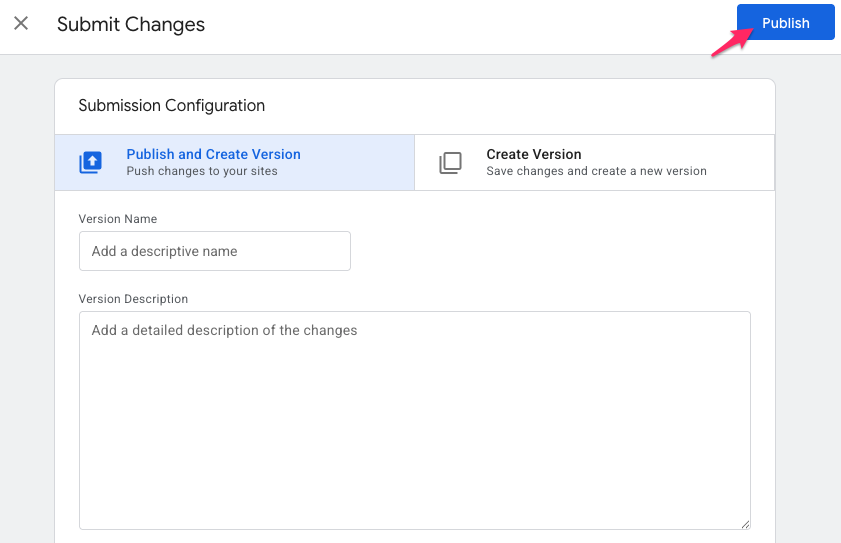
Your new tracking configuration will now be active.
Need Help?
Google Tag Manager and Google Analytics integration is a new feature in Therabyte. As we continue to improve this feature, the steps and information in this article may be updated.
If you have any questions or concerns about the setup, please don't hesitate to contact us at support@therabyte.com. Our team will be happy to assist you.