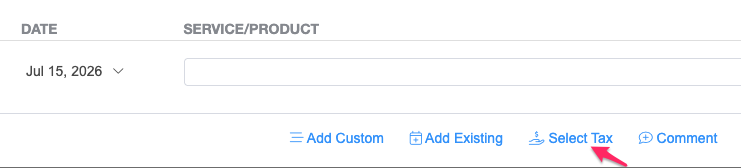
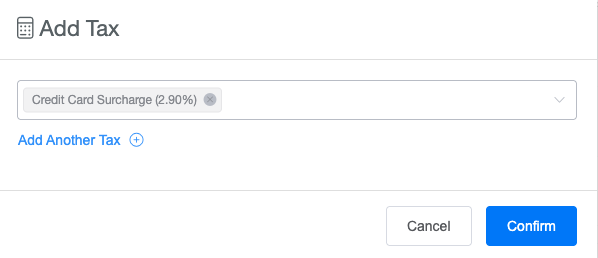
If you'd like to pass the TB Pay credit card processing fee on to your clients, you can do so by creating it as a Tax and applying it to your invoices.
Note: Before enabling a surcharge, please ensure it complies with your local laws and payment regulations, as surcharge rules vary by country and region.
Step 1: Create a Surcharge Tax
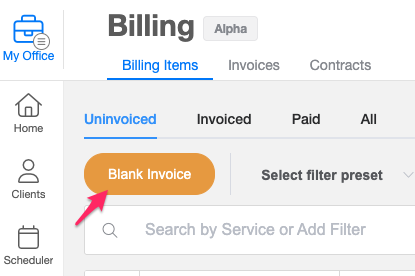
- Go to Billing and create a blank invoice.
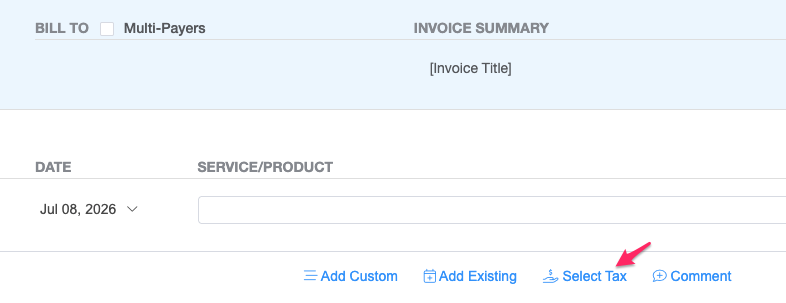
- Click Select Tax
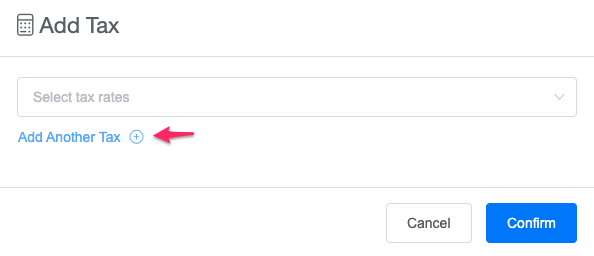
- Click Add Another Tax.
- Enter a name for the surcharge (e.g., Credit Card Surcharge or TB Pay Processing Fee). Then, enter the surcharge percentage that matches the processing fee you would like to pass on to your clients.
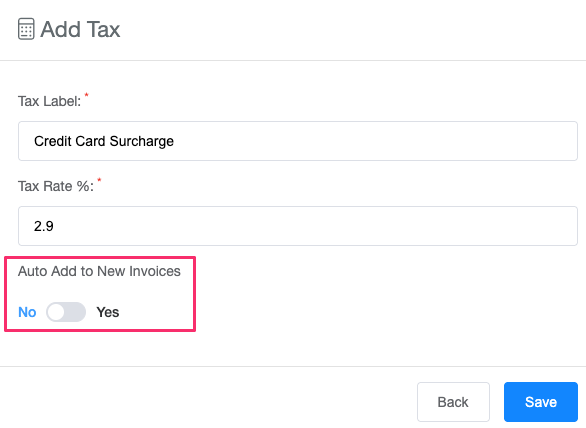 Optional: Enable Automatically add this tax to new invoices to have the surcharge applied to all newly created invoices automatically.
Important: If you choose to automatically apply the surcharge to all new invoices, make sure the client or guardian will be paying through TB Pay. If they use a different payment method, you'll need to edit the invoice and remove the surcharge before sending it. - Click Save to save the changes
Step 2: Apply the Surcharge to an Invoice