
You can complete forms on behalf of a client directly from their profile.
What types of forms can I fill out for a client?
Only Basic Forms and Evaluation Forms can be completed for a client from the client profile.
Note: Intake Forms are designed to be completed by clients through the Client Portal/Landing Page and cannot be filled out from the client modal.
Step 1: Open the Client's Profile
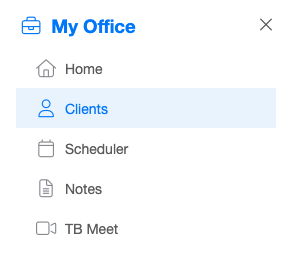
- Navigate to Clients from the main menu.
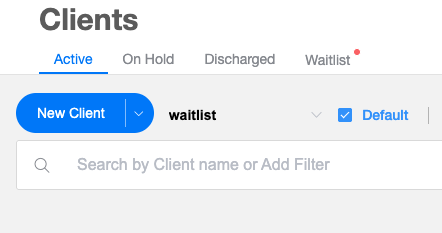
- Find and select the client whose form you want to complete.
Step 2: Go to the Forms Section
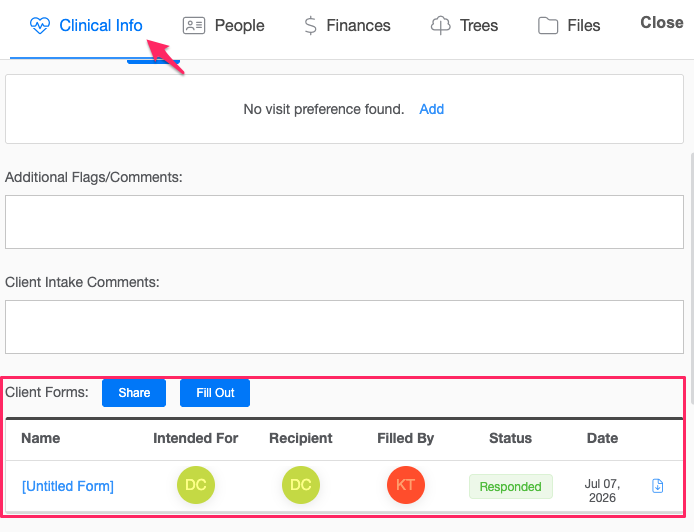
- In the client modal, under the Clinical Info tab, go to the Client Forms section.
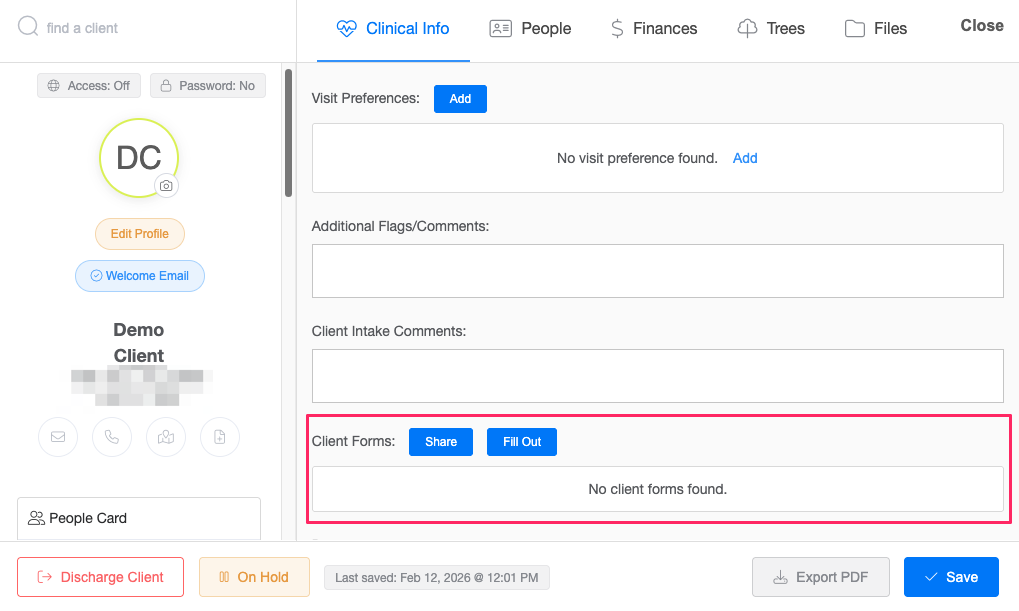
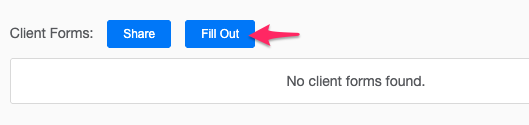
- Click the Fill Out button.
Step 3: Select a Form
- Choose the form you would like to complete for the client and click Next.
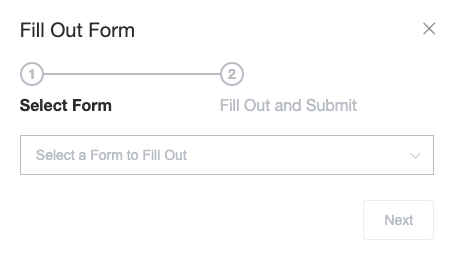
- The selected form will open.
Step 4: Complete and Submit the Form
- Fill out the form as you normally would.
- Once you've completed all required fields, click Submit.
- After submission, the completed form will appear in the client's Client Forms list.
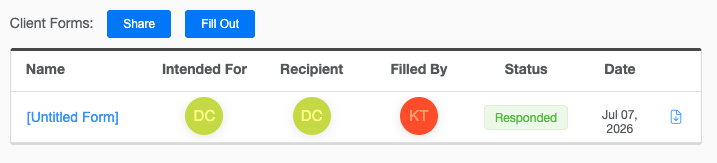
Where can I view submitted forms?
You can access completed forms at any time by either:
- The Client Forms list within the Clinical Info tab, or
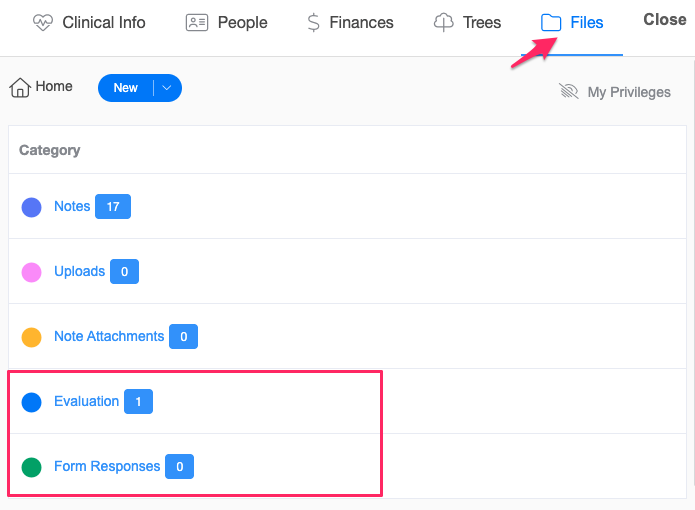
- Navigating to Client Files.
How submitted forms are organized in the Client Files
Submitted forms are automatically categorized:
- Basic Forms and Intake Forms are stored under the Form Responses category.
- Evaluation Forms are stored under the Evaluations category.
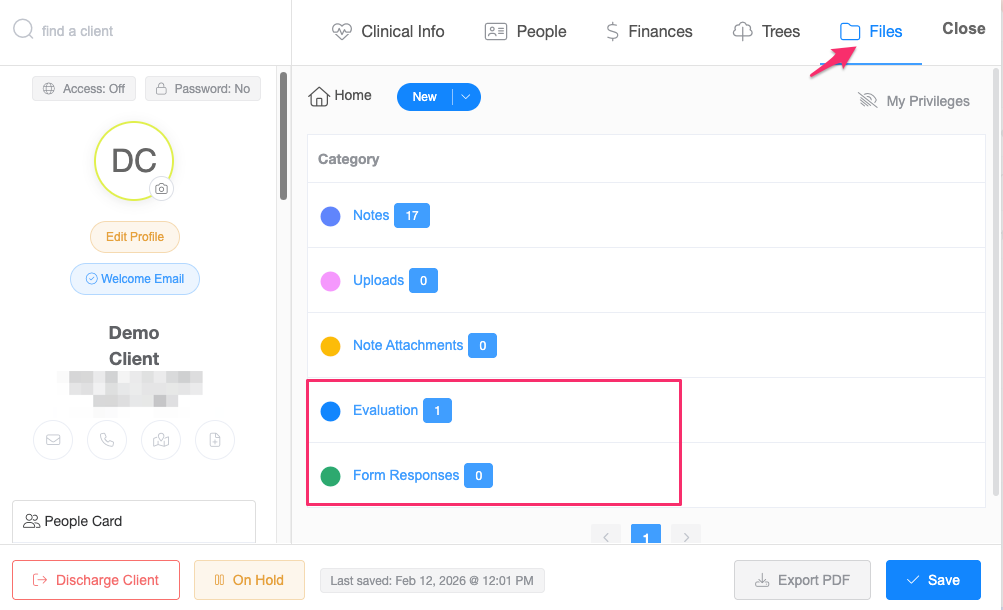
This makes it easy to locate and review completed forms in the future.