
Several Canadian provinces and territories have recently introduced changes to their daylight saving time rules. As a result, some appointments scheduled in Therabyte for November 1, 2026, and onward may appear one hour later than their originally scheduled times.
To help you identify and correct these appointments, we've introduced a Timezone Review feature in Therabyte's My Calendar.
This article explains which appointments may be affected and how to update them.
Which Calendar Events Are Affected?
The timezone changes may affect appointments scheduled in the following Canadian provinces and territories:
Alberta
British Columbia
Manitoba
Northwest Territories
Important:
- Only appointments created before October 18, 2026, and scheduled for November 1, 2026, or later, may be affected.
- Appointments created on or after October 18, 2026, are not affected by this issue.
How to Identify Affected Events
Therabyte has introduced a Timezone Review notification in My Calendar to help you easily identify appointments that may have been affected.
If your calendar contains potentially affected appointments, you'll see a notification similar to the one below:
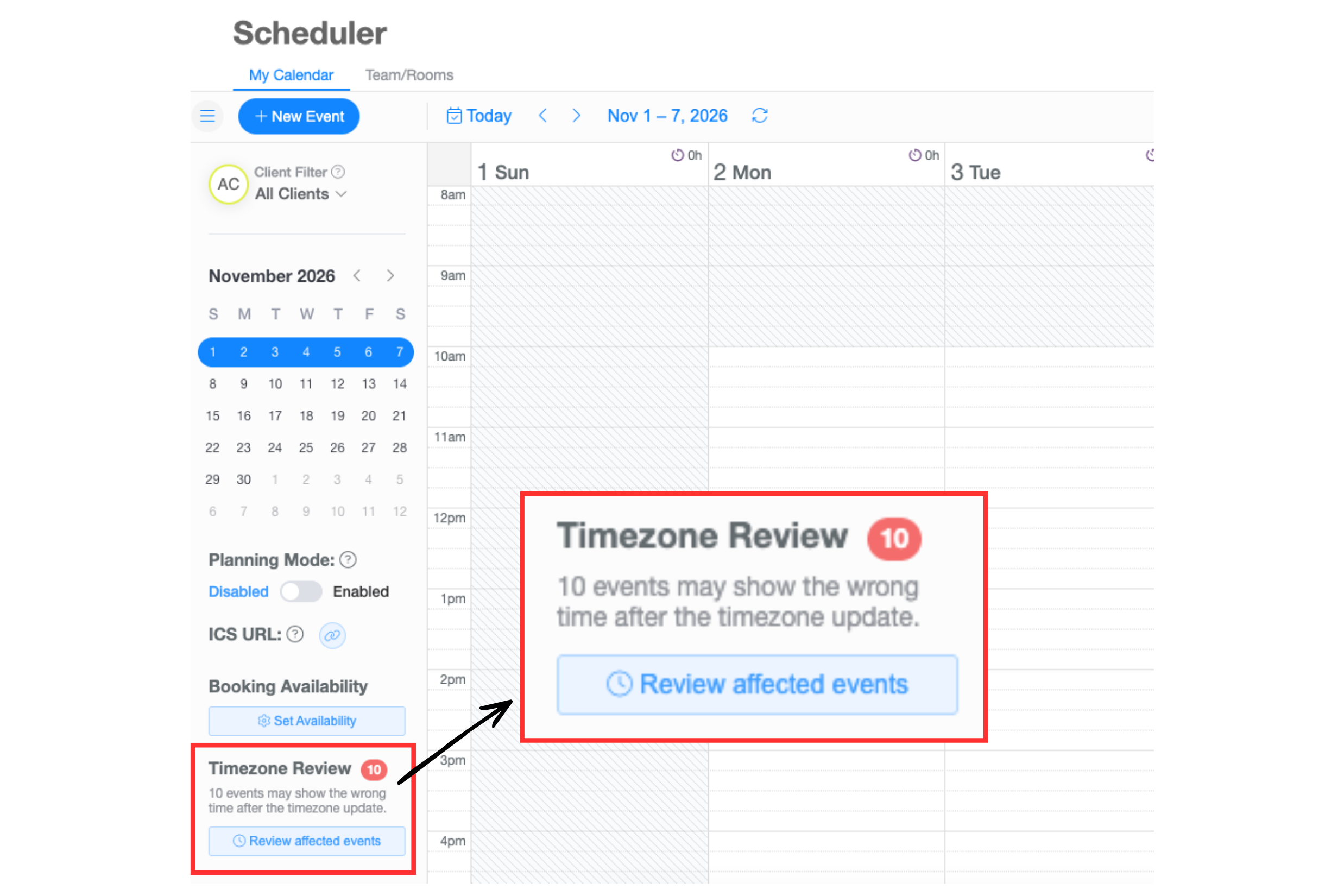
The notification displays the number of appointments that may require your attention.
How to Fix Affected Calendar Events
Step 1: Open Timezone Review
Log in to your Therabyte account.
Navigate to My Calendar.
Look for the Timezone Review notification.
Click Review affected events to view the list of potentially affected appointments.
Step 2: Review Your Appointments
The Timezone Review will display appointments that may have shifted due to the timezone changes.
Review the listed appointments to determine which ones need to be corrected.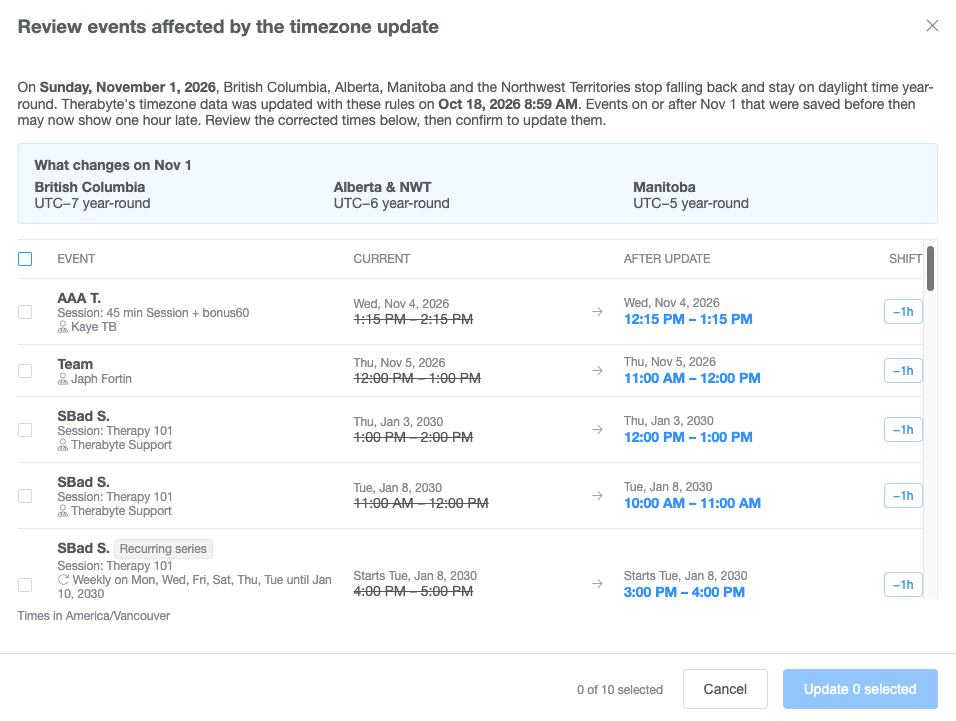
Step 3: Select the Events to Update
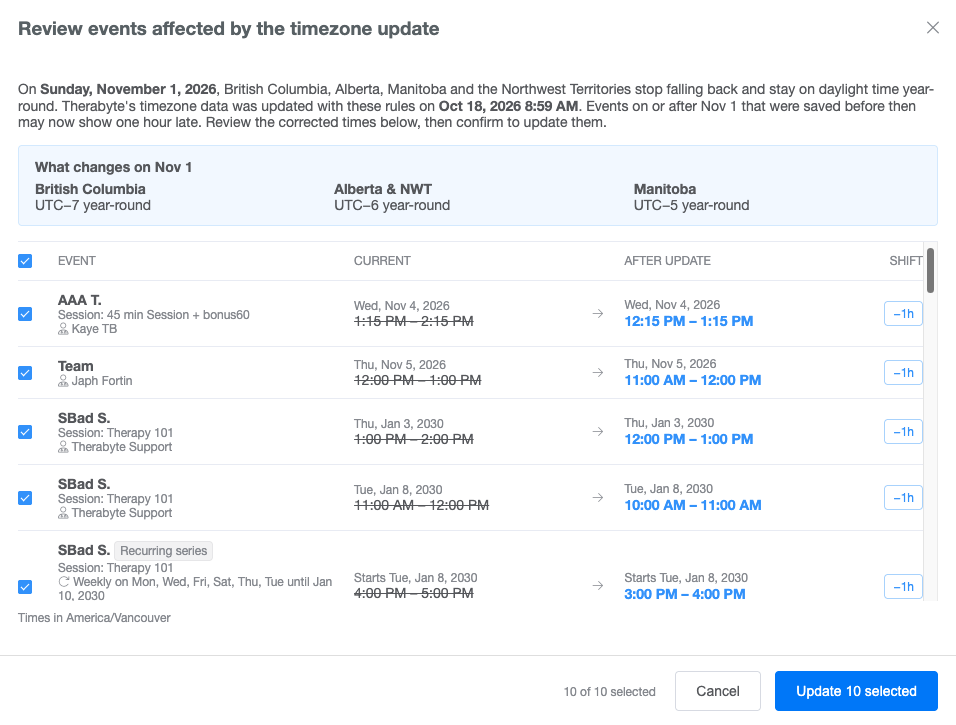
You can choose to update appointments individually or in bulk.
Update individual events: Select specific appointments that need to be corrected.
Update multiple events: Select several appointments from the list.
Update all events: Select all listed appointments if they all require correction.
Step 4: Update the Selected Events
Once you've selected the appointments you want to correct, click the Update button.
Therabyte will adjust the selected appointments to account for the timezone changes.
After updating, return to your calendar and verify that the appointments are displaying at their intended local times.
Who Can Update Affected Events?
The appointments you can review and correct depend on your role in Therabyte.
| User Role | Access |
|---|---|
| Owner | Can review and update all affected appointments across the clinic. |
| Office Admin | Can review and update all affected appointments across the clinic. |
| Practitioner | Can only review and update their own affected appointments. |
Need Assistance?
We understand how important accurate appointment scheduling is for your clinic, and we sincerely apologize for any confusion or disruption these timezone changes may have caused.
If you notice any appointments displaying incorrectly after completing the Timezone Review, please reach out to our support team at support@therabyte.com.
We're happy to help ensure your calendar is displaying appointments correctly.