
When managing client records, it’s important to understand the difference between removing a contact and deleting a user account.
Removing a Contact from a Client Profile
If you remove a parent, guardian, or contact from the People List within a client’s profile, this action does not delete their account.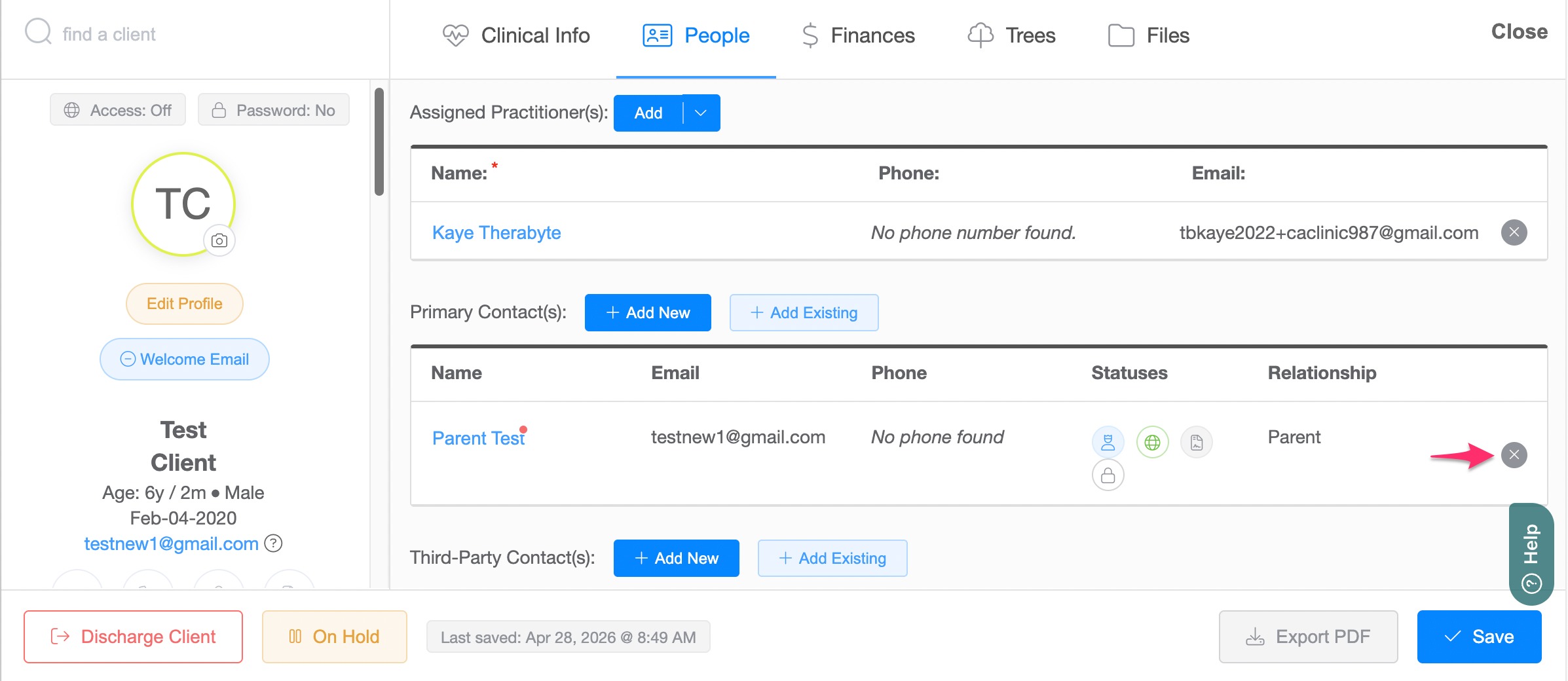
What it does:
- Removes the connection between the contact and the client, but keeps the user’s account active in the system. This means the user profile is still registered and can be re-linked or accessed later.
How to Permanently Delete a User Account
If your goal is to fully remove a user from your clinic, you’ll need to delete them from the Clinic Users section.
To do this, follow these steps:
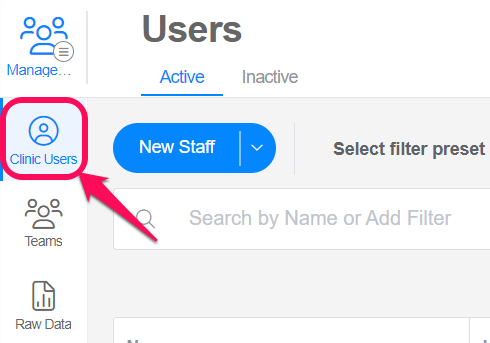
- Go to the Users page by clicking the Clinic Users from the left navigation menu under the Management menu section.
- Choose and select the user you’d like to remove from your clinic. There are two options to do this:
Actions Button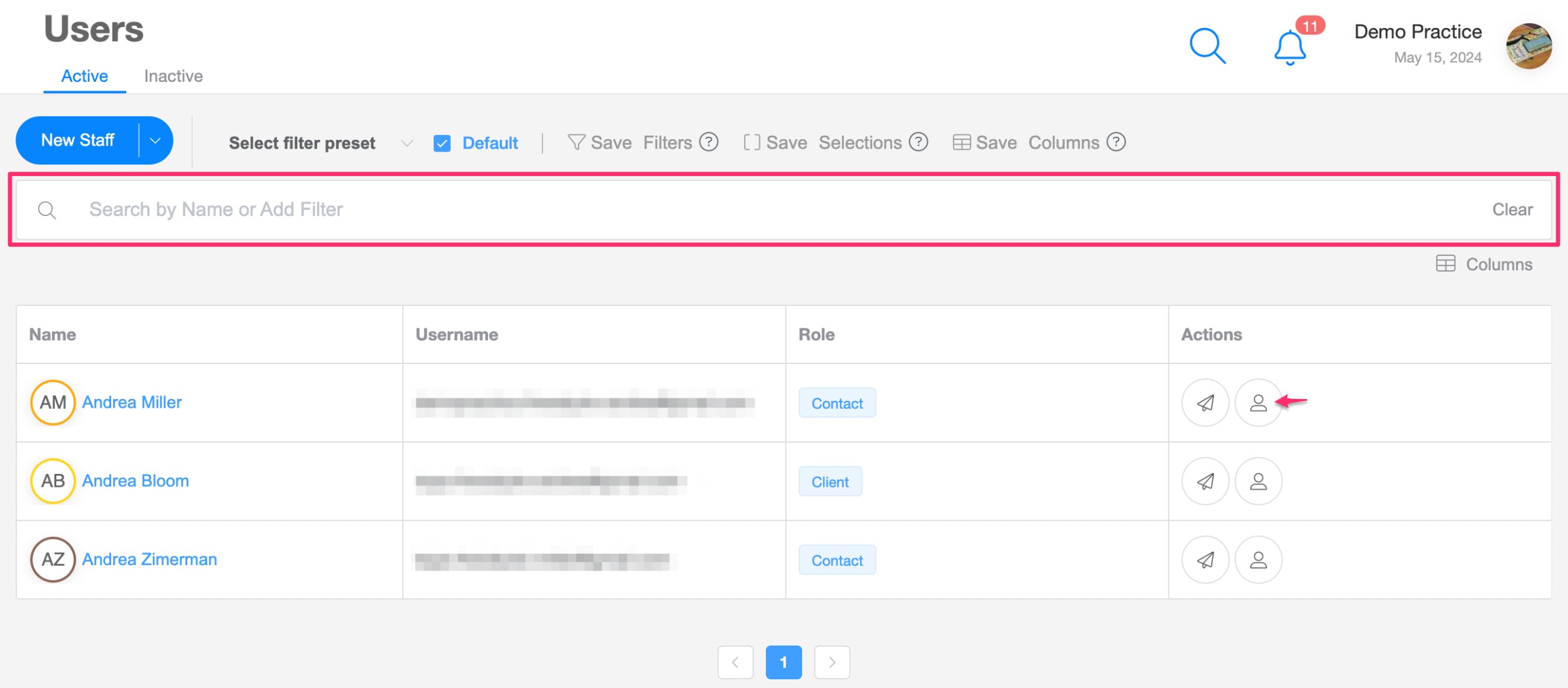
User Settings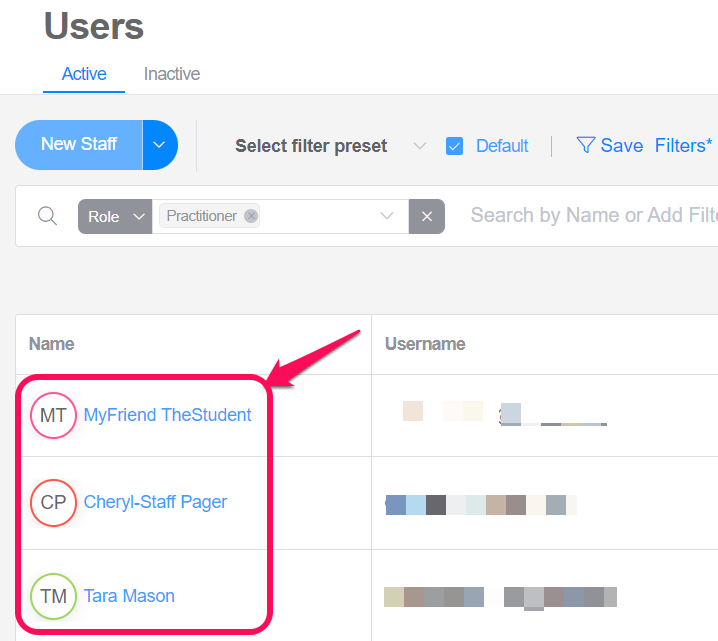
You can choose between two actions:
Mark the profile as inactive while retaining the user: To set the user as Inactive, simply update the status to inactive and save the changes.
Action button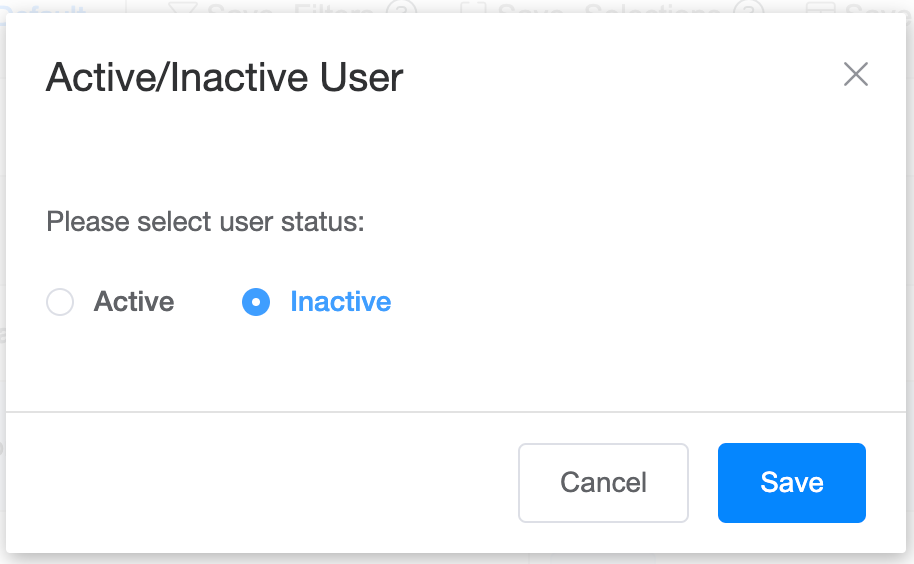
User Settings
Permanent deletion: To permanently delete the user account, select the Inactive option in the Status section, and a button for permanent deletion will appear and then click the button.
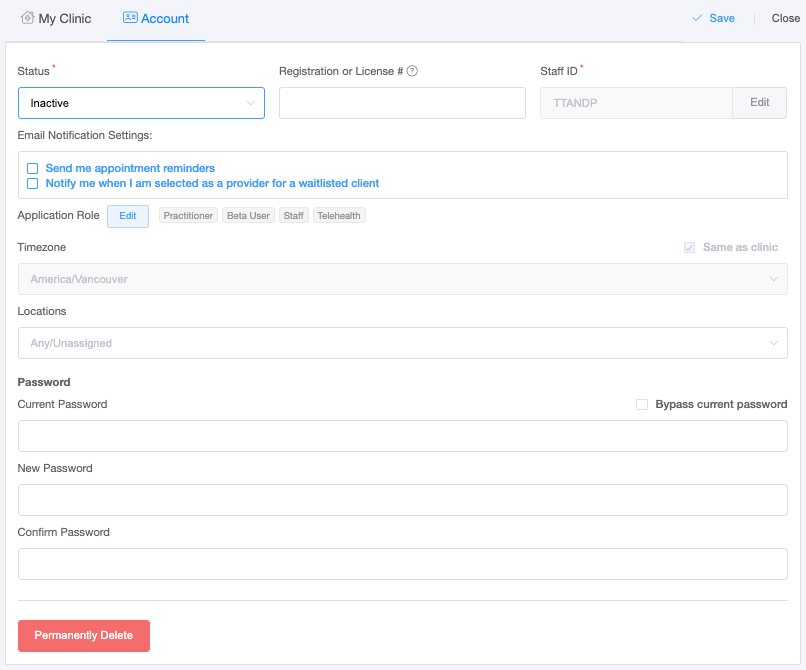
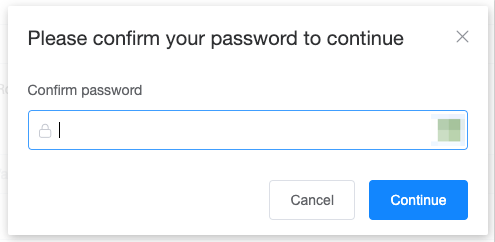
- Enter your password when prompted and click continue.
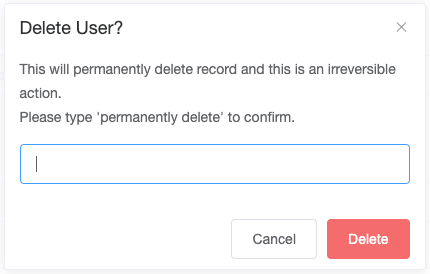
- A second layer of security will appear, asking you to type "permanently delete" and then click the delete button.
Important Reminder:
Permanent deletion is irreversible. Once completed:
- The user account is fully removed
- All associated access is revoked
- The profile cannot be recovered